The Sleep tab helps you understand and improve your sleep patterns through tracking, logging, and personalized insights.
What You'll Find Here
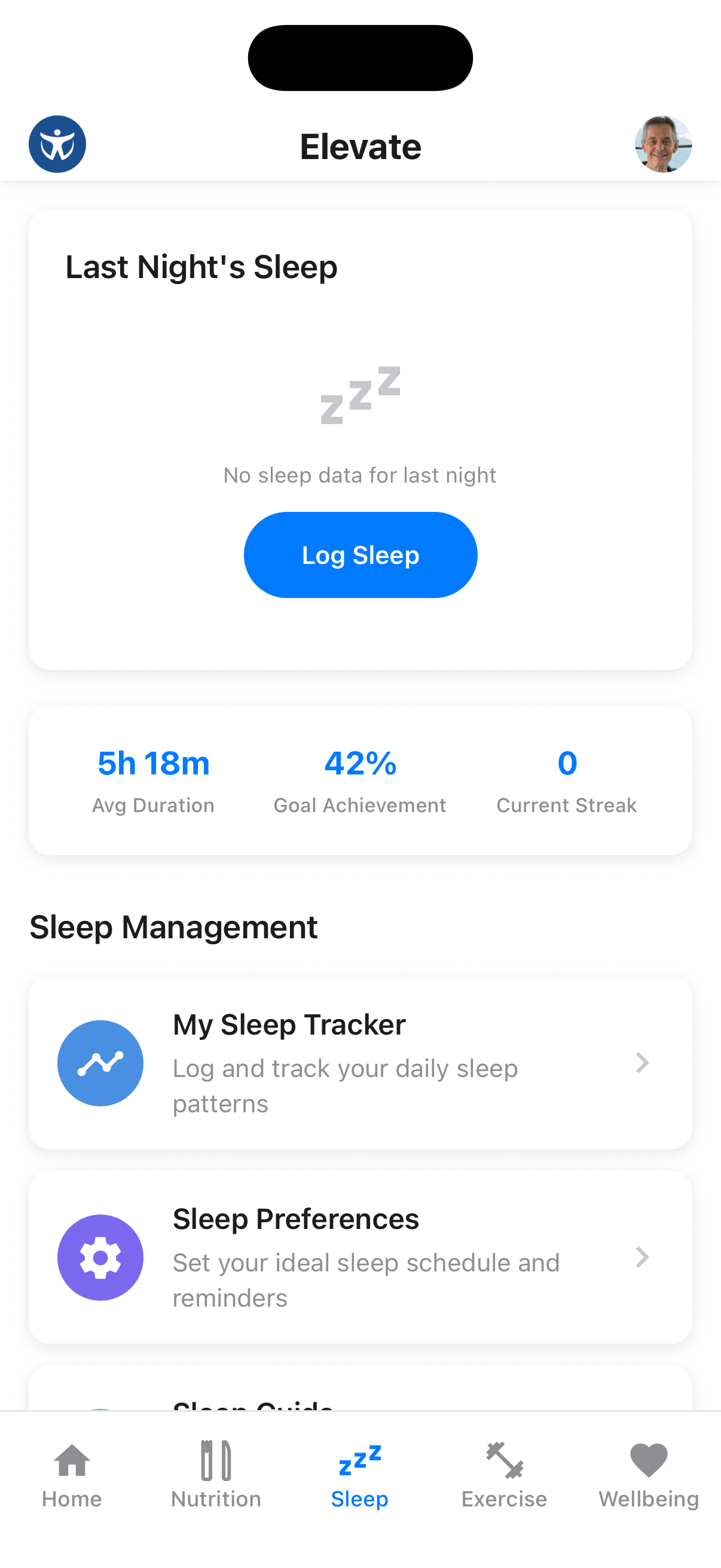
The Sleep tab provides:
- Preferences: Set your sleep goals and reminders
- Sleep Tracker: Monitor your sleep patterns over time
- Sleep Stages: Review light, deep, REM and awake estimates when your connected device provides them
- Log Sleep: Record your nightly rest
- Sleep History: View your sleep trends
Sleep Preferences
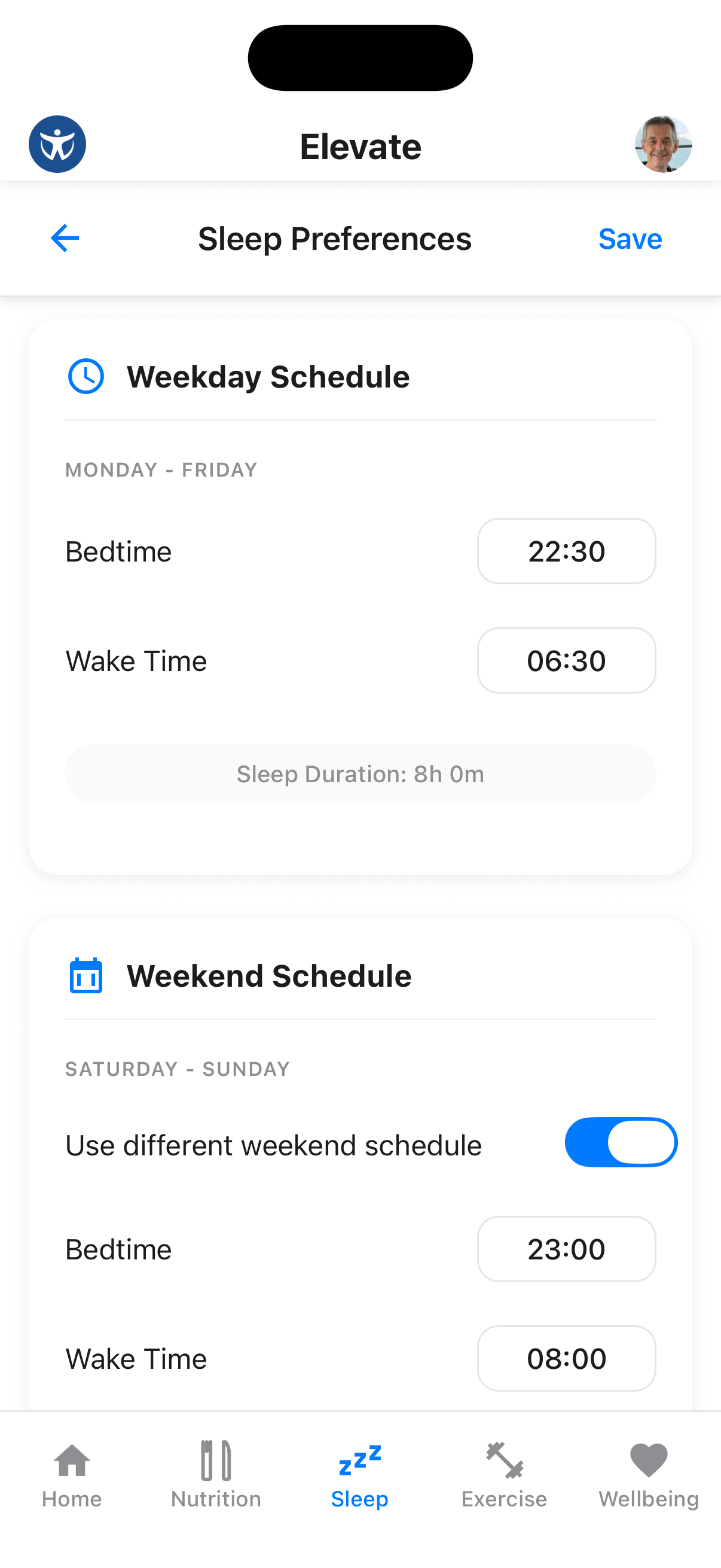
Customize your sleep tracking settings before you start logging.
Access Preferences
Tap the settings icon to adjust your sleep goals, bedtime reminders, and tracking options.
Bedtime Reminders
Enable bedtime reminders to help maintain a consistent sleep schedule.
Sleep Tracker
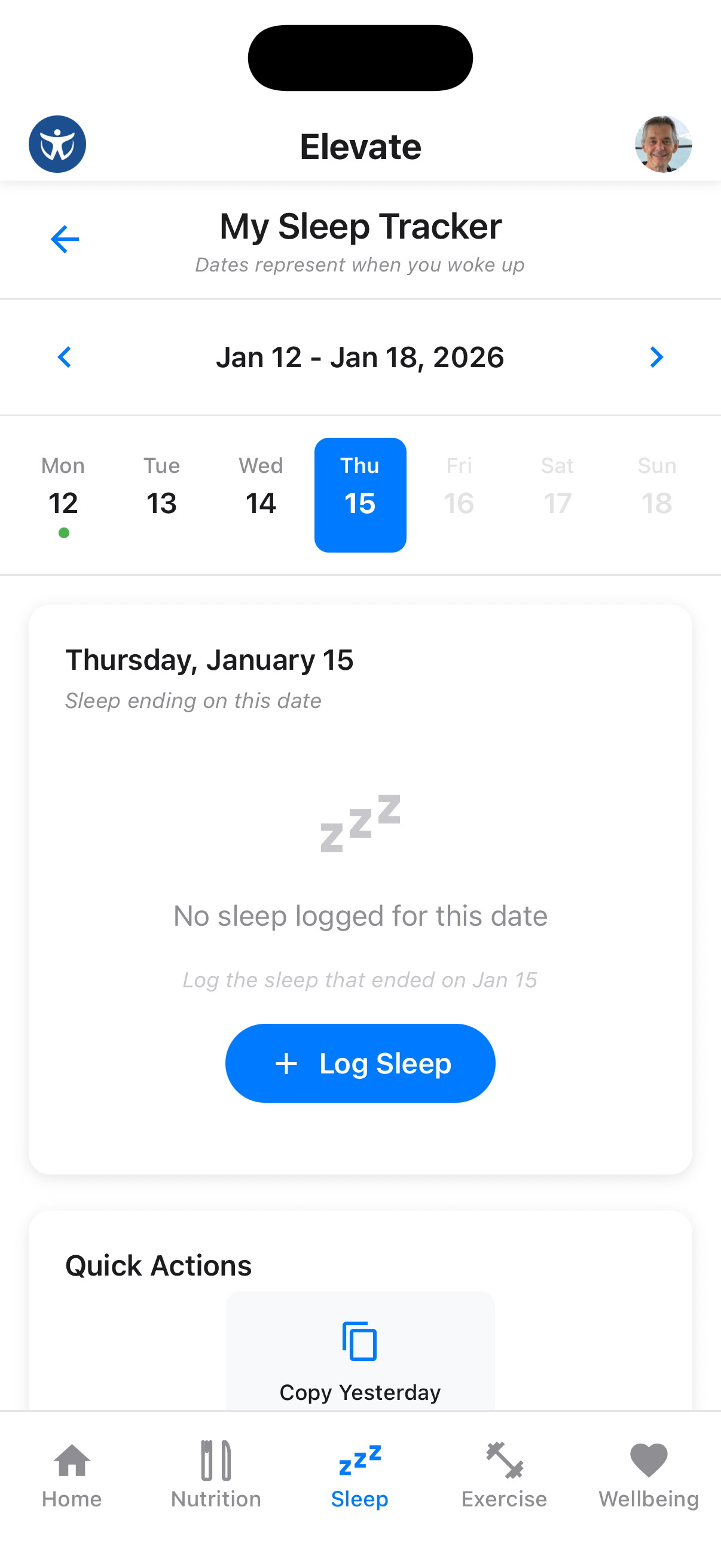
Monitor your sleep quality and duration at a glance.
View Sleep Dashboard
The Sleep Tracker shows your recent sleep data, including duration, quality score, and patterns.
Pro Tip
Aim for 7-9 hours of sleep per night for optimal health benefits.
Logging Sleep
Record your sleep to track patterns over time.
Log Your Sleep
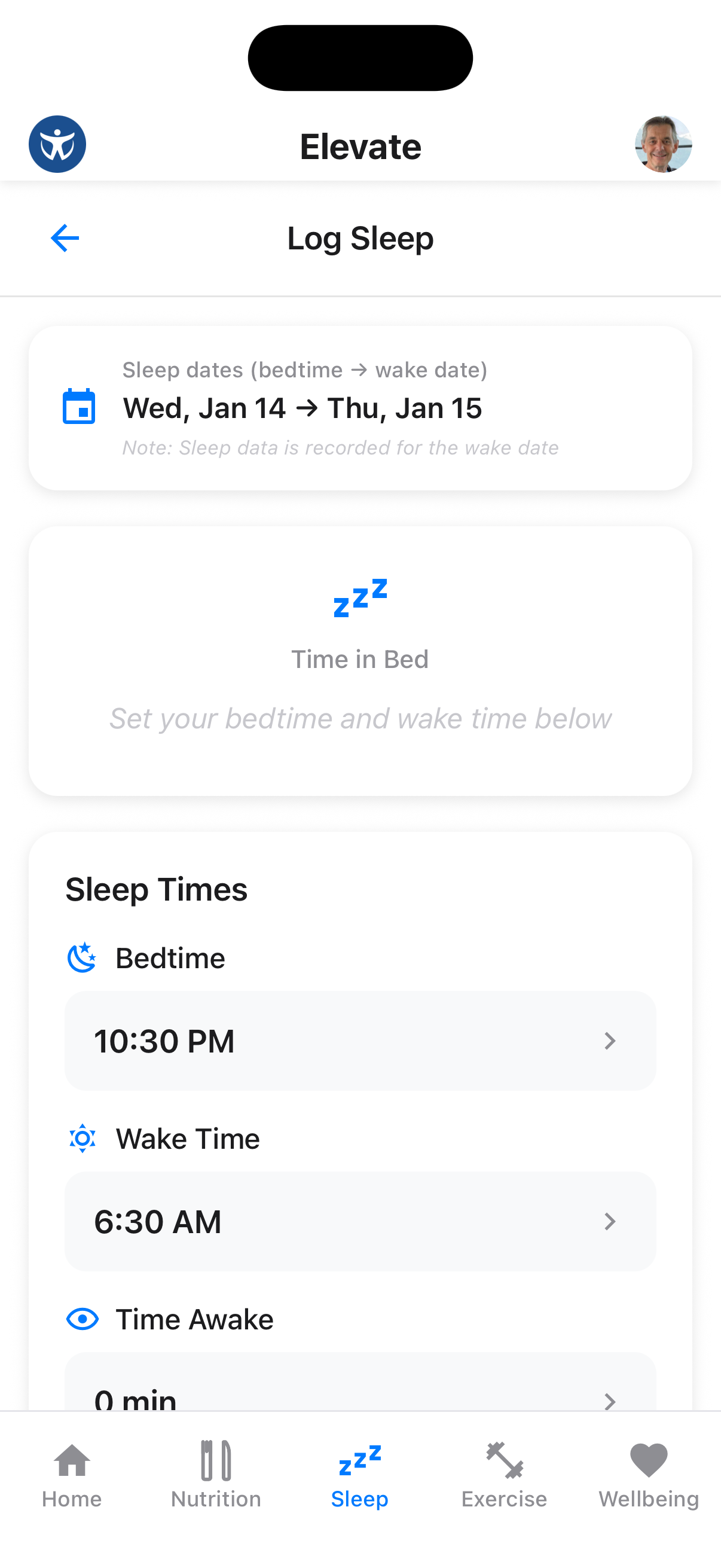
Tap the "Log Sleep" button to record when you went to bed and when you woke up.
Add Sleep Details
You can also rate your sleep quality and add notes about factors that affected your rest.
Automatic Tracking
Connect Apple Health on iPhone or Health Connect on Android to import supported sleep data from compatible devices.
Sleep Stages
When Apple Health or Health Connect supplies stage detail, Elevate shows the connected device's estimates for light, deep, REM and awake time.
Open Your Latest Sleep
View the colour-coded sleep-stage ribbon beneath your latest sleep summary. Each segment represents the stage reported for that part of the night.
Review Earlier Nights
Open Sleep History to compare the stage breakdown with previous records. You can also ask the AI Health Advisor to show last night's sleep stages or summarise recent sleep.
Device Estimates
Sleep stages only appear when the connected device and health platform provide them. They are estimates from that device, so availability and detail vary.
Sleep History
Review your sleep patterns over time to identify trends.
View History
Scroll down or tap "History" to see your sleep records over days, weeks, or months.
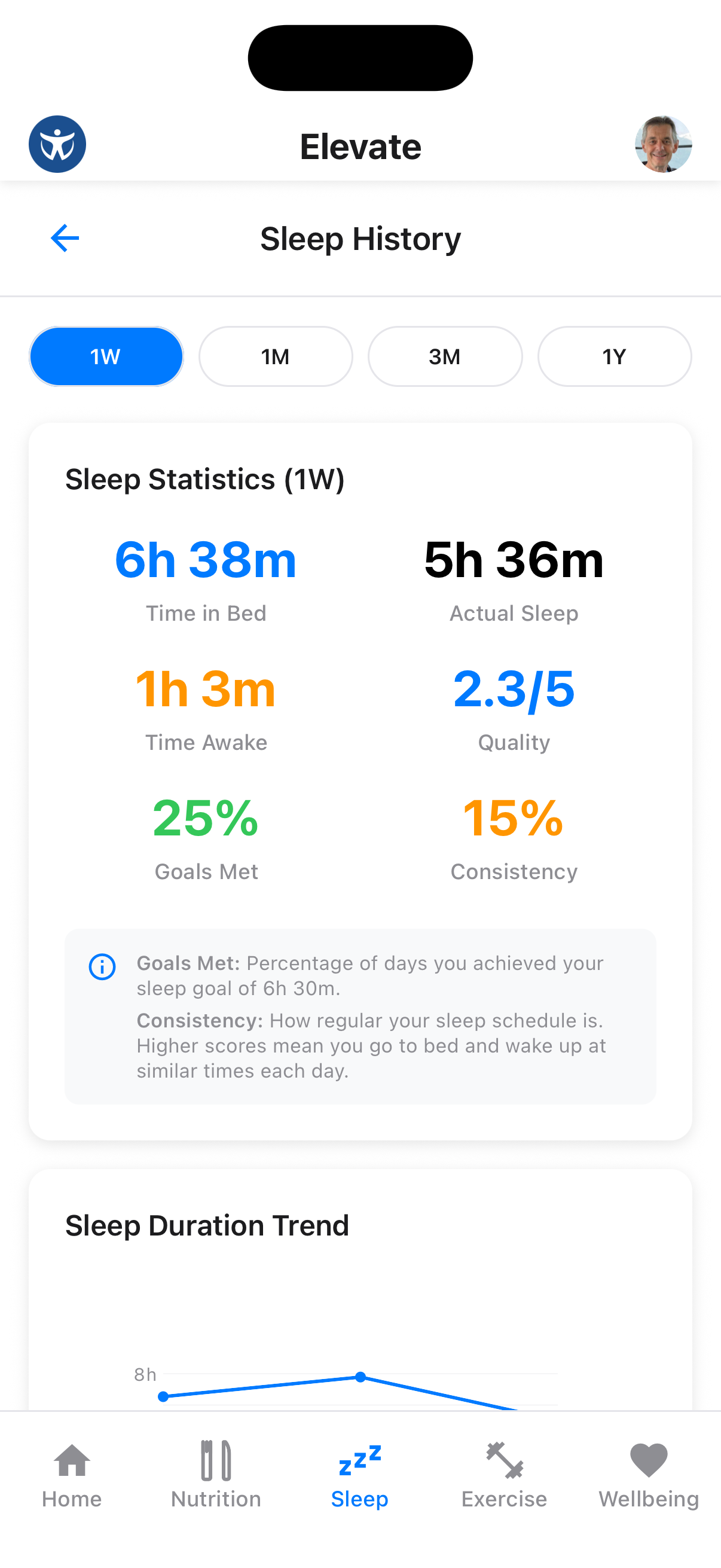
Spot Patterns
Look for patterns in your sleep data - are you sleeping better on weekends? After exercise?